
 By
By 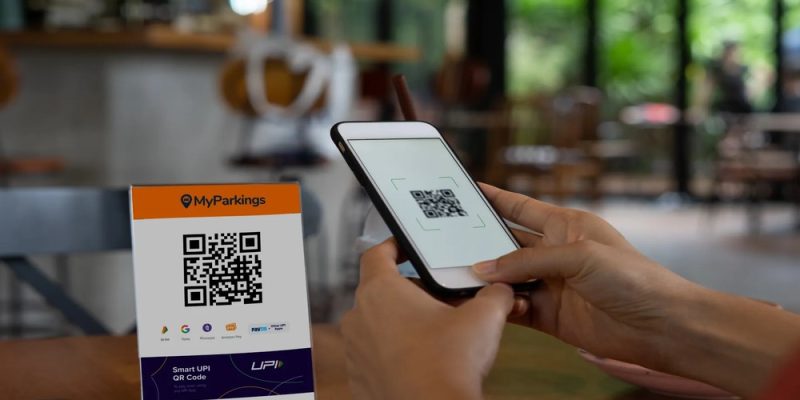
Everything Indian SMEs need to know about setting up UPI payments — from QR codes to tracking
Ravi runs a stationery shop in Coimbatore. Until last year, he kept a printed QR code taped to his counter — the one his bank gave him when he opened his current account. One afternoon a customer pointed out that the QR had expired. Ravi had no idea QR codes could expire. He had no way to know how much had been collected through it. And he had no control over the design.
If this sounds familiar, you’re not alone. Tens of thousands of small business owners across India are in the same spot — using UPI every day but not getting the most out of it. This guide changes that.
What Is a UPI QR Code and How Does It Actually Work?
UPI (Unified Payments Interface) lets customers pay you by scanning a QR code with any UPI app — PhonePe, Google Pay, BHIM, Paytm, or their bank app. The QR encodes your UPI ID (called a VPA — Virtual Payment Address), and optionally a payment amount.
When a customer scans it, their app pre-fills your UPI ID and the amount (if you’ve set one). They confirm, enter their PIN, and the money hits your bank account — usually within seconds.
Key fact: India processed over 13 billion UPI transactions in a single month in 2024. It is now the default payment method for most urban and semi-urban Indian consumers.
The Problem with Bank-Issued QR Codes
Most small businesses get their first QR code from their bank or payment app. These work — but they come with significant limitations:
- No fixed amount: The customer has to type the amount manually. This leads to errors and underpayments.
- No branding: A generic QR code with no logo looks unprofessional, especially for invoiced payments.
- No customisation: You can’t add your business name, logo, or a specific purpose to the QR.
- Tracking gaps: Bank-issued codes don’t always integrate cleanly with your accounting records.
5 Types of UPI QR Codes Every Business Should Know
1. Basic VPA QR Code
The simplest type — encodes just your UPI ID. Customer types the amount. Ideal for walk-in customers where amounts vary.
2. Fixed-Amount QR Code
Pre-fills a specific amount when scanned. Perfect for: subscription fees, fixed-price products, event ticket payments, EMI instalments.
3. Branded QR Code with Logo
Same function as above, but includes your business logo in the centre of the QR. Looks professional on printed invoices and receipts. Builds trust with first-time customers.
4. Multi-App Compatible QR (BHIM UPI Standard)
Follows the BHIM UPI QR standard — works with every UPI-enabled app in India. When generating your QR, make sure it uses the standard UPI intent format so no customer is left out.
5. Dynamic QR Code (for E-commerce)
Generated fresh for each transaction. Includes order ID, amount, and customer reference. Used by larger merchants and e-commerce platforms for automated reconciliation.
How to Generate a UPI QR Code in Under 60 Seconds
You don’t need a bank visit, a payment gateway account, or a developer to generate a professional UPI QR code. Here’s how:
- Enter your UPI ID (VPA): This is your payment address — e.g. yourname@oksbi, mobile@paytm, businessname@ybl.
- Set an optional amount: Leave blank for a general-purpose QR, or enter a fixed amount for specific payments.
- Add your business name: This appears when the customer scans — it’s their confirmation they’re paying the right person.
- Generate and download: Get a high-resolution PNG ready for print, WhatsApp, or embedding in invoices.
🔗 Free UPI QR Code Generator — mybooksai.app — Generate your free UPI QR code — no account required
Where to Use Your UPI QR Code
Once you have a well-designed QR code, here are the places it should appear:
- On your shop counter: Laminate it or use a small acrylic stand. Replace it any time your UPI ID changes.
- On your invoices: Add the QR to printed or PDF invoices so customers can pay immediately upon receiving the bill.
- On WhatsApp: Send the QR image directly to customers for remote payments — no payment link needed.
- On your business card: A QR code on a visiting card signals that you’re tech-forward and easy to pay.
- On delivery packaging: For cash-on-delivery replacements, print the QR on the package or attach a slip.
Common UPI QR Mistakes to Avoid
- Using an expired or changed UPI ID: If you change banks or UPI apps, regenerate your QR. Old QRs may still work but route to wrong accounts in some cases.
- No business name on the QR: Customers get nervous when the QR shows an unknown name. Always add your trading name.
- Poor print quality: A blurry QR won’t scan. Use PNG format, minimum 300 DPI for print.
- Not testing before displaying: Always scan your own QR with two different apps before putting it on the counter.
Integrating UPI Payments with Your Accounting
Collecting UPI payments is only half the job. The other half is recording them correctly so your books balance. A few best practices:
- Check your UPI app’s transaction history daily and reconcile against your sales records.
- Use a reference note on fixed-amount QRs (e.g. ‘Rent June 2026’) so the payment is self-documenting.
- If you issue GST invoices, match each UPI payment to an invoice number — this is essential for GSTR-1 filing.
Tools like MyBooksAI let you track all UPI collections against invoices automatically, so reconciliation happens in the background rather than at month end.
The Bottom Line
UPI QR codes are one of the simplest and most impactful upgrades a small business can make. A well-generated QR with your business name, an optional fixed amount, and your logo takes under a minute to create — and can save you hours of payment follow-up every month.
Start with your free QR code below, then think about where it should appear across your business touchpoints.
🔗 Free UPI QR Code Generator — mybooksai.app — Free UPI QR Code Generator — works with PhonePe, BHIM, Google Pay & all UPI apps
About MyBooksAI
MyBooksAI is a free AI-powered cloud accounting platform built for Indian SMEs and emerging market businesses. It includes free tools for GST billing, UPI QR generation, purchase orders, quotations, and proforma invoices — no signup required for the tools. For full accounting automation, visit mybooksai.app.










Comments